
How to go live on YouTube: from a computer, a phone or streaming software
To go live on YouTube, open YouTube Studio, click Create → Go live, and choose Stream for streaming software such as OBS or Webcam for the computer's camera. On a phone it is Create → Go live in the YouTube app. Checked against YouTube's Help Center and Studio itself on 24 November 2026.
YouTube offers three ways to go live: from a webcam in the browser, from the YouTube app on a phone, and from streaming software (an encoder) such as OBS. All three start in the same place, and all three need the same account checks first. Those checks are a verified channel, no live streaming restrictions in the past 90 days and an age of 16 or more, and the very first time YouTube can take up to 24 hours to switch live streaming on. YouTube lists them on its Get started with live streaming page.
Below: each step with screenshots of today's Live Control Room, what each of the three ways needs, going live now against scheduling a stream for later, the settings worth choosing before you start, YouTube's limits on live streams, and what to do when the Go live button is missing. Every rule links to YouTube's own page.
How to go live on YouTube, step by step
The path on a computer, as YouTube's help pages give it and as Studio shows it on 24 November 2026:
- Step 1
Check that the channel can go live
Before any button works, YouTube asks three things: the channel is verified, it has had no live streaming restrictions in the past 90 days, and you are at least 16 (Get started with live streaming).
- Verification is a phone check of the Google account, the same one that unlocks uploads longer than 15 minutes (YouTube Help).
- The first time a channel turns live streaming on it can take up to 24 hours; after that a stream can go live straight away (YouTube Help). If you plan a stream for tonight, enable it today.
No subscriber minimum applies on a computer. The 50-subscriber bar is for going live from the phone app only (mobile live streaming).
- Step 2
Open YouTube Studio and click Create → Go live
In YouTube Studio, click Create at the top right and choose Go live. This opens Live Control Room, where every live stream is set up, started and ended.
- On youtube.com itself, the Create button at the top right has the same Go live entry.
- If live streaming is not enabled yet, this is where YouTube asks to turn it on and starts the 24-hour wait.
Studio → Create → Go live.
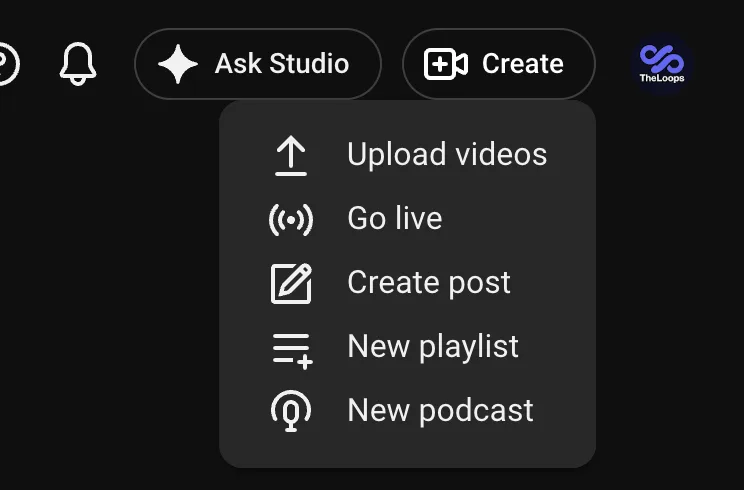
YouTube Studio → Create. Go live opens Live Control Room, where every live stream starts. - Step 3
Choose Stream, Webcam or Manage
Live Control Room has three entries on the left. Stream is for streaming software or a hardware encoder, Webcam streams straight from the browser with the computer's camera, and Manage lists your live, upcoming and past streams and schedules new ones.
- Webcam needs only a computer with a camera and Chrome 60+ or Firefox 53+ (Create a live stream via webcam). Nothing to install, but no screen sharing, scenes or overlays.
- Stream is the one for OBS, Streamlabs, a hardware encoder or a cloud service: anything that sends video to YouTube with a stream URL and a stream key (Create a live stream with an encoder).
If you are unsure, pick Webcam for a talk to camera and Stream for games, screen sharing, or a video file played as a live stream.
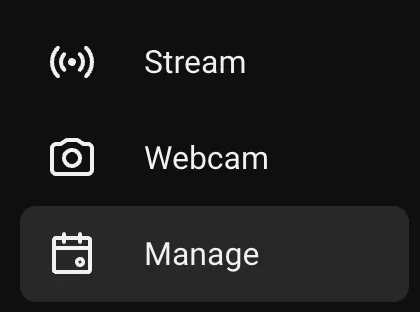
Stream is for streaming software, Webcam streams from the browser, Manage lists and schedules streams. - Step 4
Fill in the details
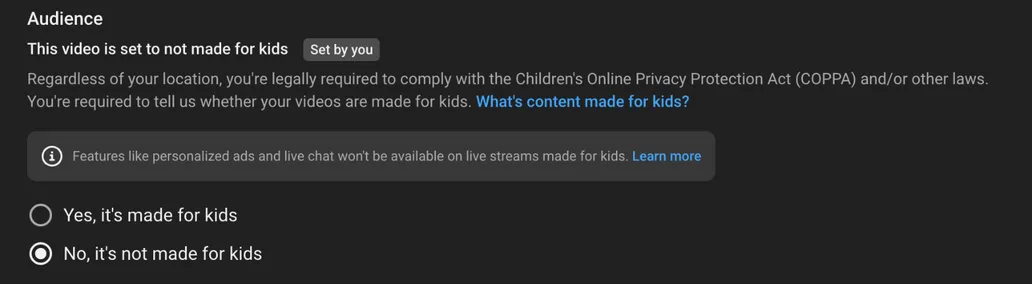
Give the stream a title (required, up to 100 characters) and a description, and check How do you want to go live? - Streaming software or Webcam. Further down, YouTube asks whether the stream is made for kids; that answer is required.
- Studio states it plainly: features like personalized ads and live chat are not available on live streams made for kids.
- A thumbnail, a playlist, an age restriction and paid promotion are set in the same form.
Write the title for search: say what the stream is, not just "Live". It is what people see in the subscription feed and in search.
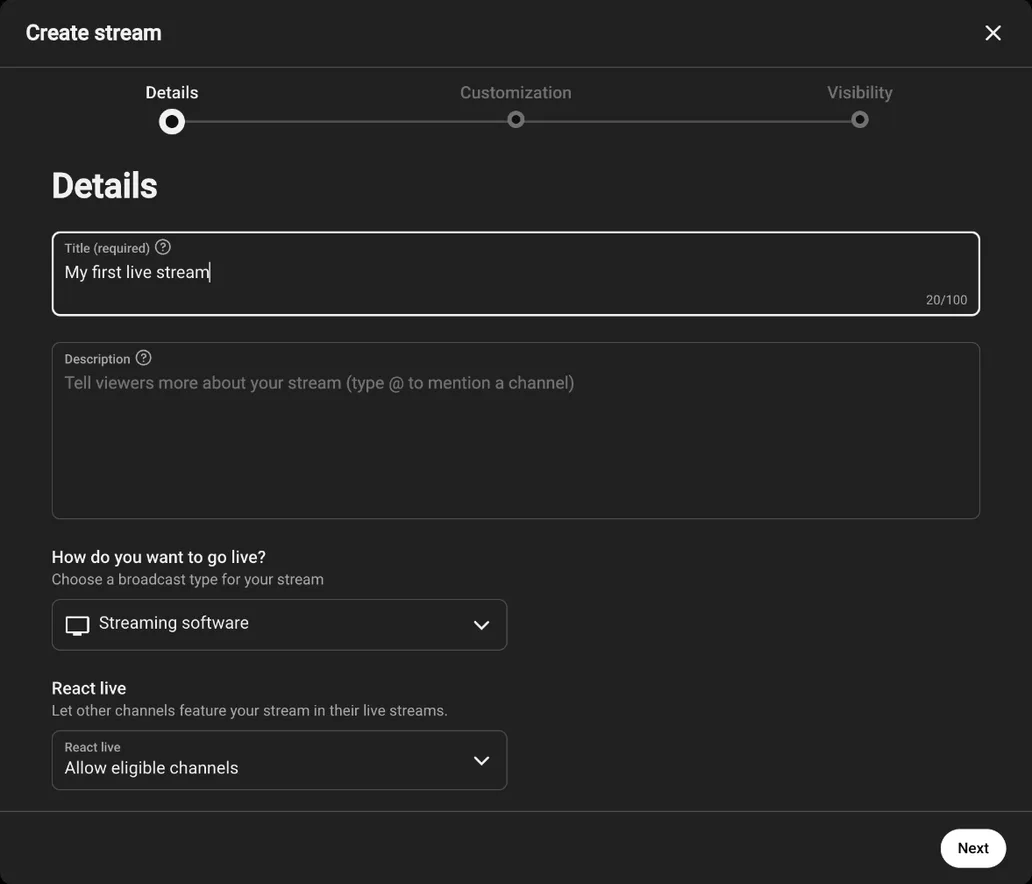
The Details step: a title is required, and How do you want to go live? switches between streaming software and webcam. - Step 5
Choose who can watch, and when
On the Visibility step choose Private (only you and people you choose), Unlisted (anyone with the link) or Public (everyone), and set the date and time if the stream is for later.
- YouTube's default is Public for accounts aged 18 or over and Private for 13-17 (YouTube Help).
- For a first test, choose Unlisted or Private: everything works the same, and nobody is notified.
A scheduled stream gets its own watch page, viewers can set a reminder, and you can share the link in advance (YouTube Help).
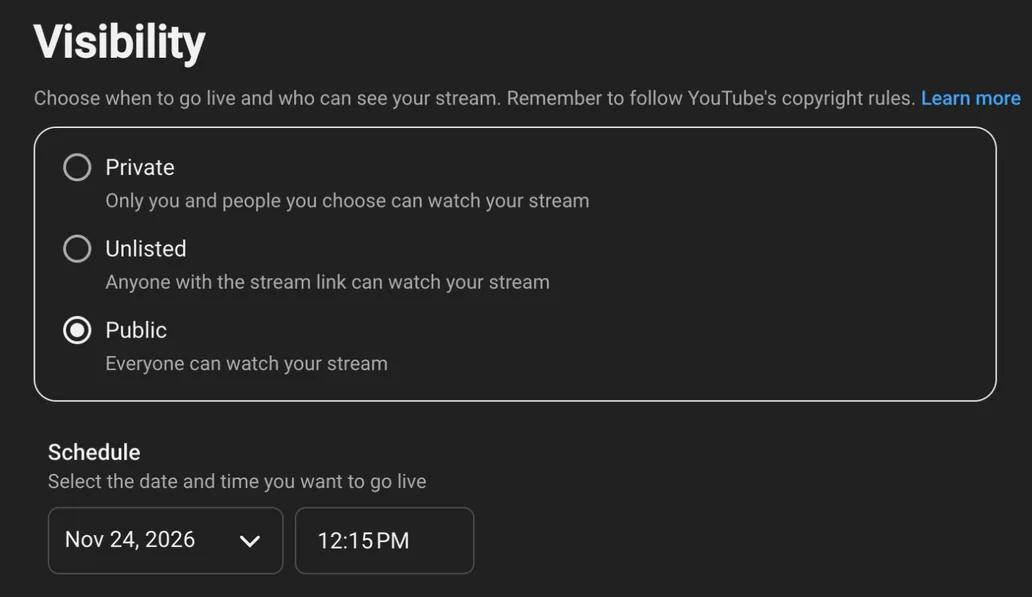
Visibility: who can watch, and the date and time to go live. For a first test choose Unlisted or Private. - Step 6
Connect the encoder and go live
For Stream, copy the stream key with the button beside the Key menu above the preview and the Stream URL from Stream settings below it, paste both into the encoder, and start streaming there. For Webcam, check the camera and microphone and click Go live.
- In OBS: Settings → Stream → Service YouTube - RTMPS, or Custom with the URL
rtmp://a.rtmp.youtube.com/live2, then paste the key. The YouTube stream key guide shows where the key is in screenshots. - Without a schedule the stream goes live as soon as the encoder sends video. A scheduled stream waits: when the preview appears, click Go live (YouTube Help).
- To finish, click End stream and stop the encoder. Streams under 12 hours are archived automatically (YouTube Help).
Treat the stream key like a password: anyone who has it can stream to your channel. If it leaks, reset it in the same Key menu.
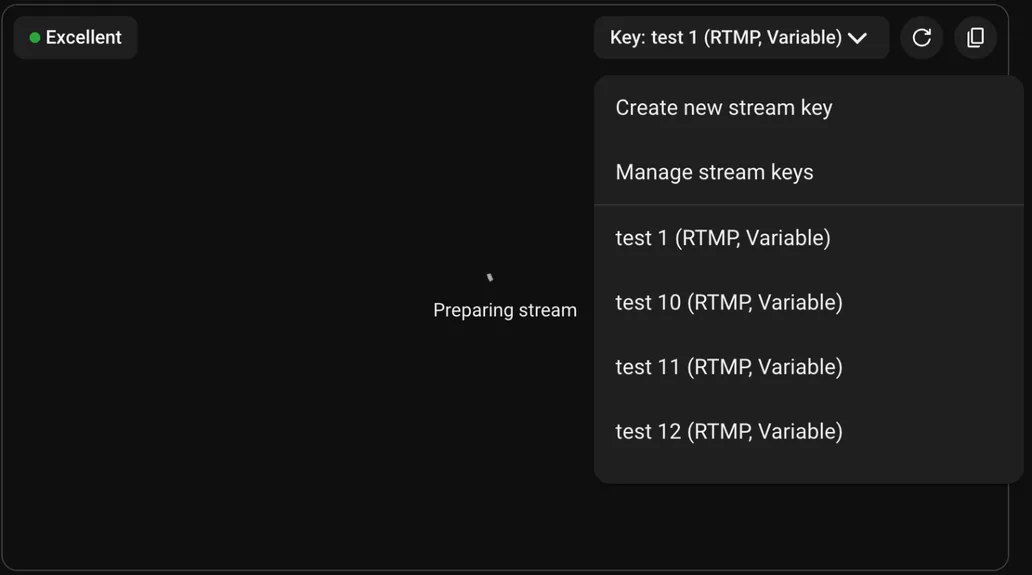
YouTube Studio → Create → Go live → Stream. The key is chosen in the Key menu above the preview; the two buttons beside it reset the selected key and copy it. The key itself never appears on screen. - In OBS: Settings → Stream → Service YouTube - RTMPS, or Custom with the URL
Go live now, or schedule the stream
Live Control Room handles both. Going live now suits a quick stream; scheduling gives the stream a watch page in advance, so people can find it and set a reminder.
- Now: open the Stream tab, check the details, and start the encoder. YouTube creates the watch page when the video arrives (YouTube Help).
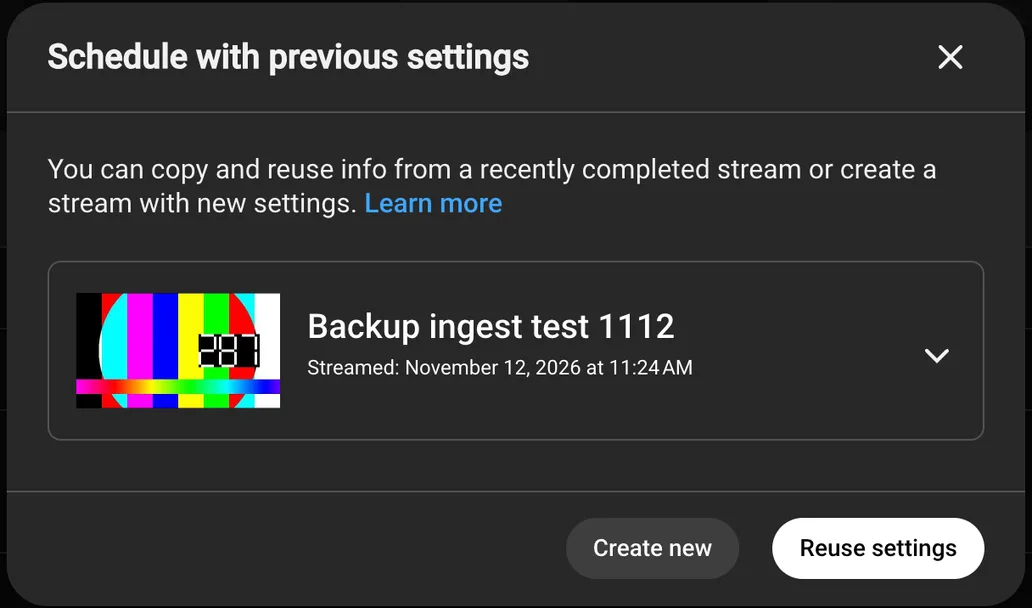
- Later: Manage → Schedule stream. YouTube offers Reuse settings, which copies a recent stream's details, or Create new (YouTube Help).
- Reuse settings copies the stream key too. Two scheduled streams on one key is how the yellow Stream key is currently assigned bar appears; the duplicate stream key guide shows how to clear it.
- Trailer: a scheduled stream can show a 15-second to 3-minute trailer on its watch page, for channels with more than 1,000 subscribers (YouTube Help).
- On the phone: the YouTube app also offers Schedule for later with a date (mobile live streaming).
A scheduled stream does not start by itself unless auto-start is on in its settings; otherwise it waits in the preview until you click Go live.
Settings to choose before you go live
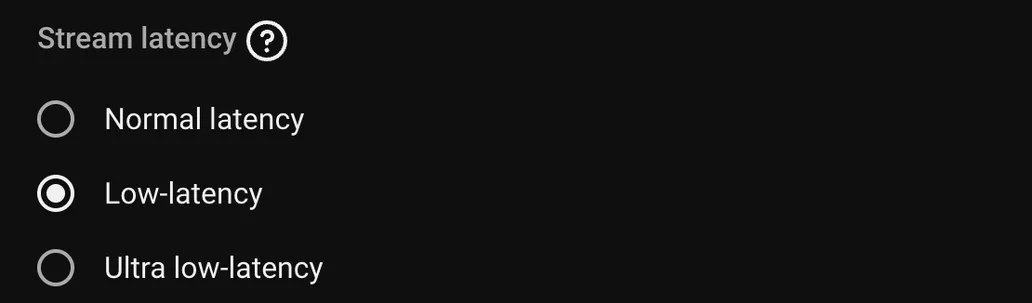
The ones that matter are under Stream settings in Live Control Room. Stream latency is the delay between you and your viewers, and YouTube offers three options (Understand live streaming latency):
| Latency | Delay for most viewers | Best for | 4K |
|---|---|---|---|
| Normal | Not stated | Streams without much chat; the highest quality, least buffering | Yes |
| Low | Under 10 seconds | Some audience interaction | No |
| Ultra-low | Under 5 seconds | Real-time chat; more buffering for viewers | No |
- Webcam and phone streams are always set for interactivity; their latency cannot be chosen (YouTube Help).
- Encoder settings YouTube recommends for H.264: about 8 Mbps at 720p, 14 Mbps at 1080p30, 17 Mbps at 1080p60, a keyframe every 2 seconds (never more than 4), CBR, and AAC audio at 128 Kbps stereo (encoder settings). The bitrate calculator works it out for your upload speed.
- DVR lets viewers rewind while the stream is live; it is a switch under Additional settings, next to an added delay and closed captions.
- Unlist live replay once stream ends hides the recording from the channel after the stream, if you do not want it kept public.
For a stream you are going to talk to chat on, choose Low. For a 24/7 stream nobody chats with, Normal gives viewers the best picture.
YouTube's rules and limits for live streams
The limits that decide whether a stream can start, and how long it is kept:
- Age and standing: 16 or older, a verified channel, and no live streaming restrictions in the past 90 days. (YouTube Help).
- Concurrent streams: at most 10 active streams per channel and 3 per stream key (YouTube Help).
- Length: YouTube publishes no maximum length for a live stream, but only streams under 12 hours are archived automatically; a longer one may not be saved at all (Archive live streams).
- Phone: at least 50 subscribers. Under 1,000, YouTube may limit how many people can watch a mobile stream, and its replay is private by default (mobile live streaming).
- Made for kids: must be answered for every stream; a stream made for kids has no live chat and no personalized ads.
- Pre-recorded video played as a live stream is not forbidden by YouTube's policies; what its spam and monetization policies ask of titles and repetitive content is in the pre-recorded live stream guide.
Most "I can't go live" problems come from the first line: the 24-hour wait, an unverified account, or a past restriction.
When you can't go live on YouTube
What the usual problems mean and what to do about each.
Live streaming is not available yetThe first time a channel enables live streaming it can take up to 24 hours (YouTube Help).
- Wait out the 24 hours; nothing speeds it up.
- Check that the channel is verified and has had no live streaming restriction in the past 90 days (YouTube Help).
No Go live button in the YouTube appGoing live from a phone needs at least 50 subscribers, and Android 8.0+ or iOS 8+ (mobile live streaming).
- Below 50 subscribers, go live from a computer instead: webcam or streaming software have no subscriber minimum.
The webcam is not foundWebcam streaming works in Chrome 60+ and Firefox 53+ (YouTube Help).
- Update the browser, or switch to Chrome or Firefox.
- Allow camera and microphone for studio.youtube.com in the browser's site settings, and close other apps that hold the camera.
The preview stays empty / No dataYouTube is not receiving video from the encoder.
- Check the stream URL and key in the encoder and that it has actually started streaming.
- The YouTube Live "No data" guide goes through the four causes in order.
Stream key is currently assigned. Select a new key or change it in <stream>.The key you picked already belongs to another stream, live or scheduled.
- Pick or create another key in the Key menu, or give the other stream a different key from Manage.
- The duplicate stream key guide shows how it happens and how to clear it.
Going live without your computer
Every way above needs a device that stays on for as long as the stream runs. When the stream is a video you already have - a loop, a playlist, a recorded show - a cloud encoder does that part instead.
In TheLoops you paste the YouTube stream key into the dashboard once, upload the videos, and the stream runs from our servers around the clock, with your computer switched off. It restarts by itself if YouTube drops the connection.
Keep a YouTube live stream on air 24/7
Paste the stream key into TheLoops, upload your videos, and the stream runs from our servers around the clock - no computer of yours left on.
- Any RTMP or RTMPS ingest, not a fixed list
- Automatic restart if the platform drops the connection
- Up to 10 destinations from one broadcast
Going live on YouTube: questions
On a computer: YouTube Studio → Create → Go live, then Webcam to use the camera or Stream to use streaming software such as OBS. On a phone: the YouTube app → Create → Go live (YouTube Help).
Yes. From a computer there is no subscriber minimum, only a verified channel, no restrictions in the past 90 days and an age of 16+. The phone app needs 50 subscribers, and under 1,000 YouTube may limit the audience of a mobile stream (YouTube Help).
Usually one of three things: live streaming was enabled less than 24 hours ago, the channel is not verified, or it has had a live streaming restriction in the past 90 days (YouTube Help). On a phone, also check the 50-subscriber minimum.
YouTube publishes no maximum length, and 24/7 channels run for weeks. But only streams under 12 hours are archived automatically; a longer one may not be saved (YouTube Help).
No. Webcam streaming runs in the browser and the phone app needs nothing else. Streaming software is for what those cannot do: screen sharing, games, several cameras and overlays, or playing a video file as the stream.
Yes, through the Stream tab: an encoder plays the file and YouTube receives it like any other live stream. YouTube's rules for it, and how they differ from a Premiere, are in the pre-recorded live stream guide.
Read next
Where the key is, how to make one that stays, and how to reset one that leaked.
All four ingest addresses, RTMP and RTMPS, primary and backup.
The OBS settings a stream that runs for days needs.
Each platform's own rules on streaming a recorded video as live.