
How to loop a video on a live stream, for free
YouTube has no loop setting for a live broadcast. Something has to play your file again and again and keep sending it. These are the three free tools that can, what each one costs you, and where each one breaks.

A looped live stream is one video file, or a short playlist, played from the end back to the start without stopping and sent to YouTube as a live broadcast. Lofi radios, fireplaces, aquariums, rain sounds and study-with-me channels all run this way, and none of them has a person at a desk while it plays.
You can do it for free with software you already have. The cost is a computer that has to stay on for as long as the stream does, and a handful of settings that decide whether the loop survives its first night. Both are below, step by step.
Why YouTube cannot loop the video for you
A YouTube live stream is not a file YouTube plays. It is a signal YouTube receives: an encoder on the other end opens an RTMP connection and sends video in real time, and the broadcast lasts exactly as long as that signal keeps arriving. When it stops, YouTube shows viewers a waiting screen and, after a while, ends the broadcast.
That is why there is no loop checkbox in YouTube Studio. YouTube never holds your video during a live stream, so it has nothing to repeat. Premieres look similar, but a Premiere plays an uploaded video once, as an event, and then becomes an ordinary video.
So the looping always happens before YouTube: something has to read the file, start it again when it ends, and push the result to YouTube's ingest address with your stream key. The three free tools that do this are OBS Studio, VLC inside OBS, and FFmpeg. The same methods work for Twitch, Kick and Facebook, with their own ingest addresses.
Loop one video in OBS Studio (free)
OBS Studio is free, runs on Windows, macOS and Linux, and has the loop option built into its Media Source. For a single video this is the simplest setup there is.
Add the video as a Media Source
In the Sources panel press +, choose Media Source, give it a name and pick your file under Local File.
- Use a file stored on the computer itself, not on a network drive or a USB stick that can sleep or disconnect.
- Tick Use hardware decoding when available to take the decoding off the processor.
- Right-click the source and choose Transform → Fit to screen if the video does not fill the canvas.
Tick Loop
In the same Media Source properties, tick Loop. It is off by default, and without it the video plays once and the stream shows a black screen from then on.
- Loop is the setting that matters. Restart playback when source becomes active is a different option: it restarts the video when you switch back to the scene, not when the video ends.
- Leave Close file when inactive off, so the file stays open between loops.
- Play the video to its end once in the preview and watch the moment it starts again: that is the seam your viewers will see on every pass.
Set the output for a stream that never ends
Open Settings → Output, switch Output Mode to Advanced, and set the Keyframe Interval to 2 seconds.
- YouTube recommends a keyframe every 2 seconds and says not to exceed 4. In OBS, 0 means automatic, which can go above that.
- Use CBR rate control and a bitrate your upload can hold all day, not just for a minute. The bitrate calculator turns a measured upload speed into a number.
- A calm looped video such as a fireplace or a lofi animation does not need 60 frames per second; 30 halves the work and the upload.
Paste the stream key and go live
In YouTube Studio choose Create → Go live and copy the stream key. In OBS open Settings → Stream, choose YouTube - RTMPS, paste the key, then press Start Streaming.
- The key is a password to your channel's live stream: anyone who has it can broadcast on your channel. Do not show it on screen or share it.
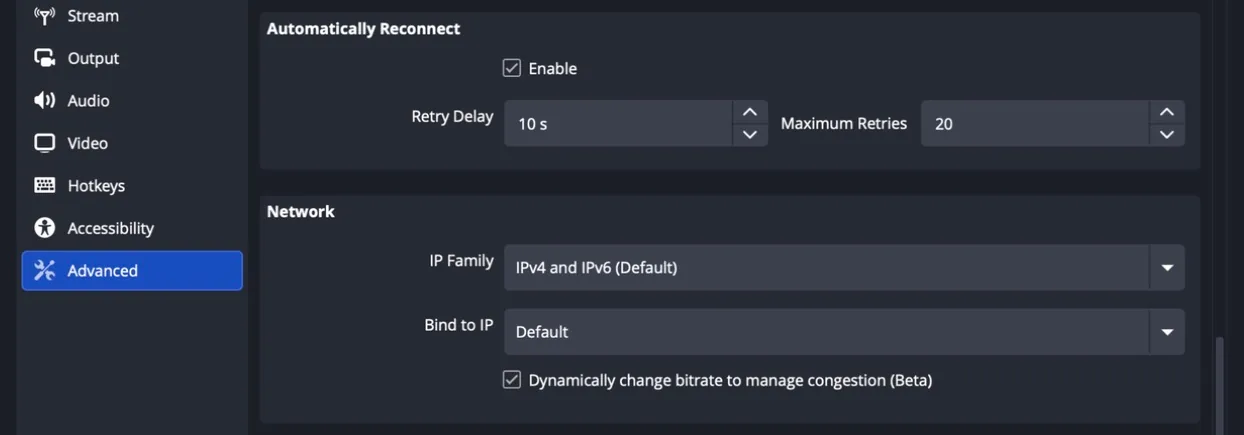
- Turn on Settings → Advanced → Automatically Reconnect, so a network blip does not end the stream for good.
- Check YouTube Studio's stream health after a few minutes. If it reports no data, the no-data guide tells the causes apart.
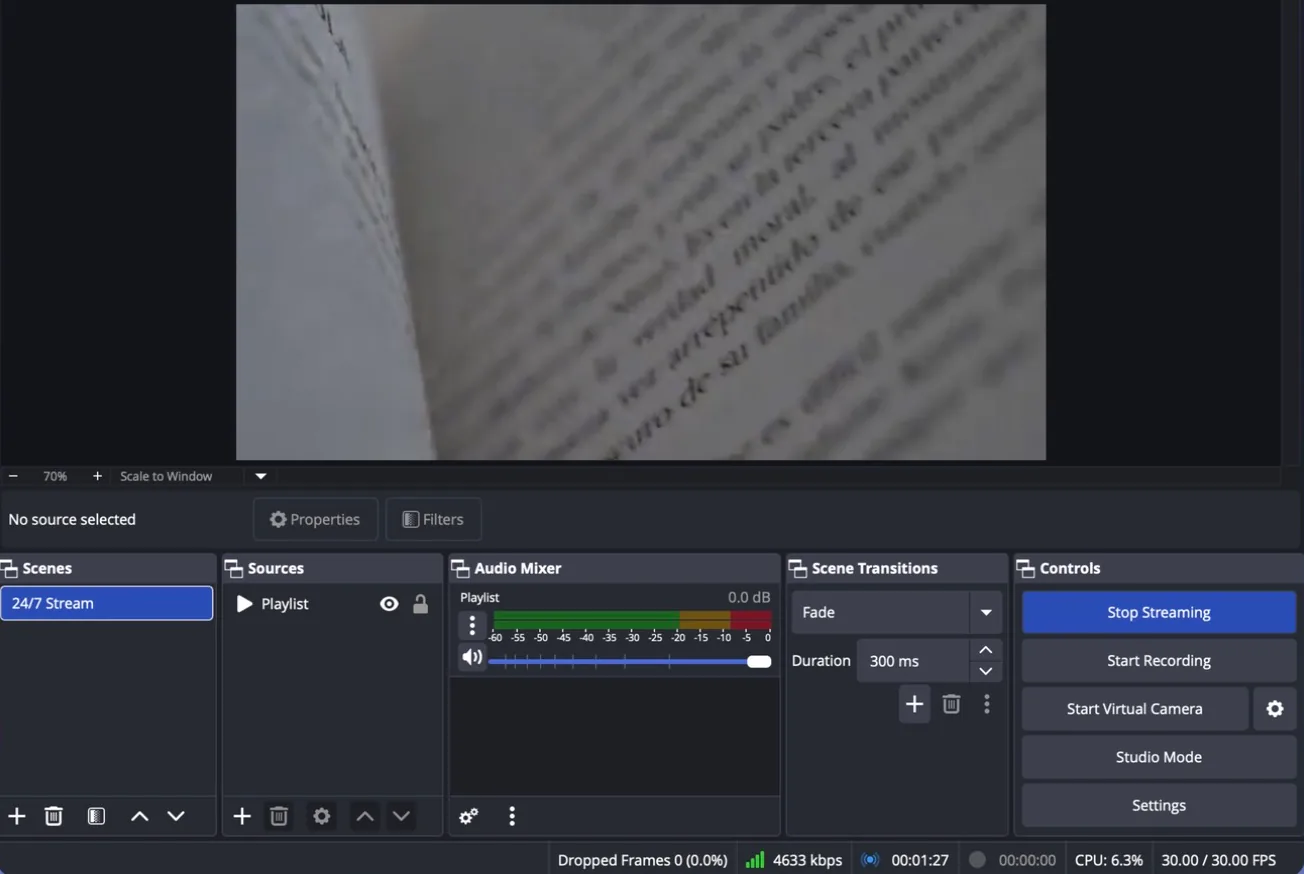
Loop several videos as a playlist
OBS's Media Source loops one file. For several files in order, starting again from the first after the last, OBS has a second source, VLC Video Source, which plays a playlist:
- Install VLC first. OBS only offers the VLC Video Source when VLC is installed, and the 64-bit OBS needs the 64-bit VLC.
- In Sources press +, choose VLC Video Source, and add your files to the playlist. Loop Playlist makes it start again from the first file after the last; Shuffle Playlist plays them in random order instead.
- Set the output and the stream key exactly as in steps 3 and 4 above. Nothing about the stream itself changes.
A longer playlist also means less repetition for viewers who stay. If you are planning one, the playlist duration calculator adds up the running time, and the 24/7 setup guide covers how much material a round-the-clock channel needs.
Loop a video with FFmpeg, without OBS
FFmpeg is the free command-line tool that most streaming software is built on. It needs no screen and no scene, which makes it the usual choice on a small server or an old computer in a cupboard. One command loops a file forever and sends it to YouTube:
ffmpeg -re -stream_loop -1 -i video.mp4 -c copy -f flv "rtmp://a.rtmp.youtube.com/live2/YOUR-STREAM-KEY"-stream_loop -1repeats the input without end. It has to come before-i; written after the file name, it does nothing.-rereads the file at its real playback speed. Without it, FFmpeg sends the video as fast as it can read it, and YouTube receives an hour of video in a minute.-c copysends the file as it is, without re-encoding, so the processor barely works. It only suits a file that is already H.264 video with AAC audio and has a keyframe at least every 4 seconds.-f flvand thertmp://address are what YouTube's ingest expects. ReplaceYOUR-STREAM-KEYwith the key from YouTube Studio.
Many files fail that last condition without saying so: video editors and the x264 encoder commonly place keyframes up to 250 frames apart, which is more than 8 seconds at 30 frames per second. If the stream never becomes healthy, encode while sending instead, with a keyframe every 2 seconds (60 frames at 30 fps):
ffmpeg -re -stream_loop -1 -i video.mp4 -c:v libx264 -preset veryfast -b:v 4500k -maxrate 4500k -bufsize 9000k -g 60 -keyint_min 60 -sc_threshold 0 -pix_fmt yuv420p -c:a aac -b:a 128k -ar 44100 -f flv "rtmp://a.rtmp.youtube.com/live2/YOUR-STREAM-KEY"Encoding on the fly costs processor time for as long as the stream runs. The cheaper way is to encode the file once with those settings and then loop the result with -c copy. And FFmpeg does not restart itself: when it exits, the stream is over until something starts it again, so on a server it needs a service manager or a script that relaunches it.
Where a loop breaks
A loop that works for ten minutes in testing can still fail on its first night. These four are the usual reasons, and none of them shows up in a short test.
A visible seam where the video starts again
At the point where the last frame jumps back to the first, viewers may see a brief black frame, a stutter or a jump in the sound. Part of it is the content itself: a video whose last frame does not match its first will always show a cut, however clean the playback is.
- Edit the video so the end flows into the beginning: a fade, or the same shot at both ends.
- If OBS blinks between playlist items, try the other source type (Media Source for one file, VLC for several) and compare.
Sound and picture of different lengths
Many files have an audio track slightly longer or shorter than the video. Played once, nobody notices. Looped, each pass can leave the picture frozen or the sound silent for that difference, and with FFmpeg on some files the gap builds up into sound that drifts away from the picture over hours.
- Check both durations with
ffprobeor a video editor before you loop the file. - Re-export the file with both tracks cut to the same length (FFmpeg's
-shortestdoes this when encoding).
The computer stops: sleep, updates, power
Most looped streams that die overnight die because the machine did. It went to sleep, an operating-system update restarted it, or the power or the connection dropped for a moment. Windows can restart to install updates outside the active hours you set, and active hours cover at most 18 hours of the day.
- Switch off sleep, and in OBS turn on Automatically Reconnect with generous retries (Settings → Advanced, pictured below).
- Schedule updates yourself, and look at the stream at least once a day; nothing else will tell you it stopped.
The broadcast outlives its archive
YouTube publishes no maximum length for a live stream, so a loop can run for weeks. But YouTube says a stream longer than 12 hours may not be archived afterwards, and live watch hours only count toward monetization once the broadcast exists as a public video.
- If replays or watch hours matter to you, end and restart the broadcast before it reaches 12 hours.
- The watch hours guide explains which live hours YouTube counts and which it does not.
What a looping computer costs
OBS, VLC and FFmpeg are free. The computer running them is not. A desktop drawing around 150 W day and night uses roughly 110 kWh a month, which is about $20 at the current US average and more across most of Europe. The electricity cost calculator works it out for your machine and your tariff.
The other cost is the upload. A live stream sends its full bitrate every second it is on air, so a 1080p loop occupies several megabits of your upload around the clock, for everything else in the house as well. The bitrate calculator shows what your connection can carry.
And then there is attention: the stream stays up only as long as the computer, the connection and the software all do, and someone has to notice when one of them doesn't. For a weekend experiment this is fine. For a channel that should simply be on, it is the part that wears people down.
Is a looped live stream allowed on YouTube?
YouTube's policies do not prohibit streaming recorded video as a live broadcast, and a large share of round-the-clock channels do exactly that. The rules that apply are the ones that apply to any video, plus three that matter more for loops.
Don't present a recording as happening now. YouTube's spam and deceptive practices policy covers titles and thumbnails that mislead viewers about what they are watching. A relaxing aquarium loop deceives nobody; a replay of a match titled as if it were being played right now does.
Repetition and monetization. To earn from a channel, it has to meet YouTube's monetization policies, including the one on inauthentic content, formerly called repetitious content. It targets material with little original value, not the loop format itself; the watch hours guide goes through it.
Rights to everything in the video. A looped stream plays the same music and footage thousands of times, so one claimed track is a problem on every pass. The copyright guide and the guide to music licensing for live streams cover what is safe to use.
Looping a video without a computer
Everything above has one thing in common: a machine you own has to stay on. The alternative is to let a server do the looping. You upload the video once, and the stream runs from a data centre while your computer is switched off.
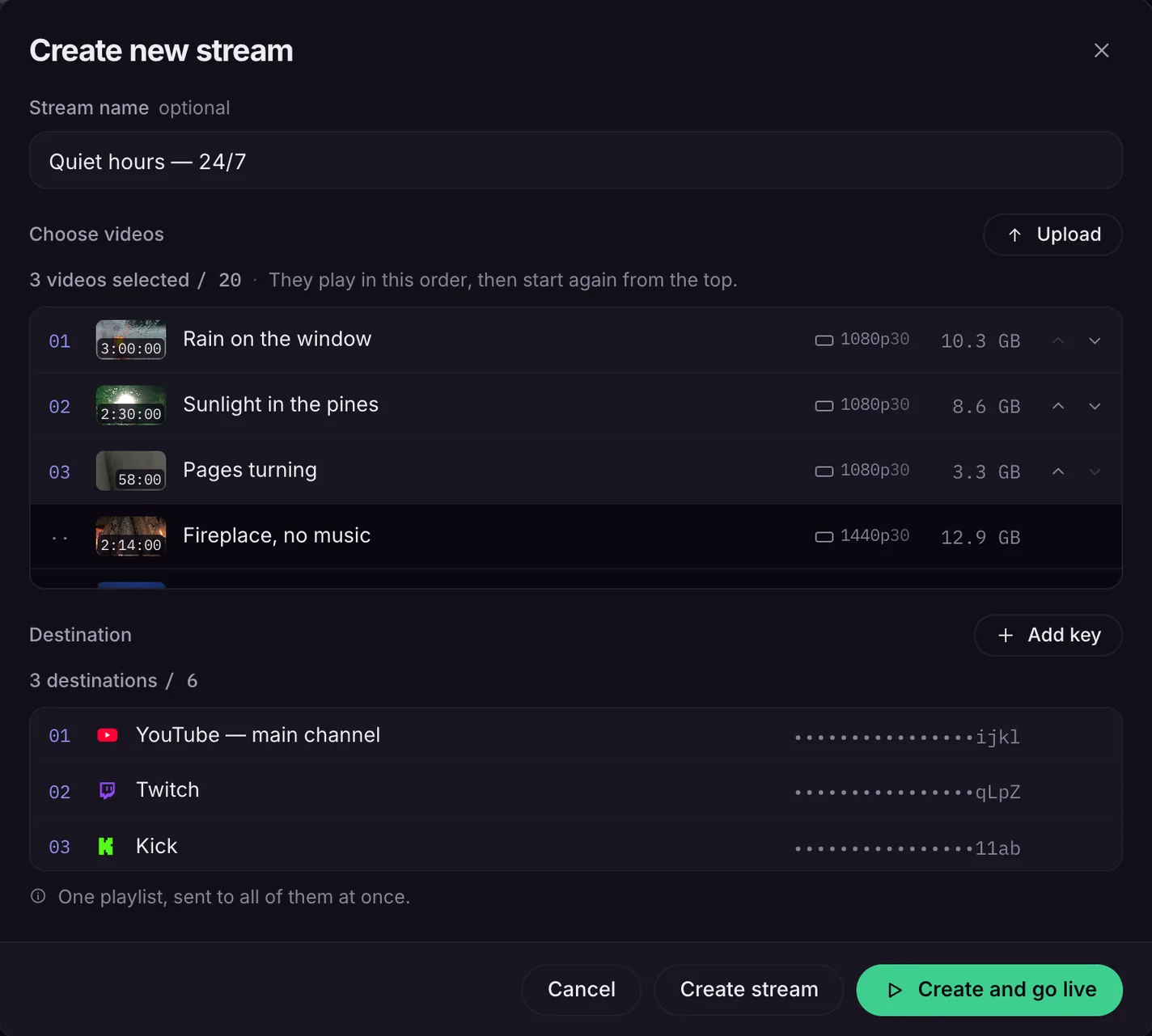
That is what TheLoops does. Each upload is encoded once to settings the platforms accept, with a keyframe at least every 2 seconds and sound and picture cut to the same length, so the problems in section 5 are handled before the video goes on air. The stream is then watched around the clock and restarted automatically when it drops. One video loops on its own, several play in order and start again, and on paid plans the same loop goes to YouTube, Twitch, Kick and other platforms at once.
The trade is simple: OBS and FFmpeg cost nothing and take your computer and your attention; a cloud service costs money and takes neither. Pricing shows what a loop costs on TheLoops, and the 24/7 setup guide compares all three arrangements side by side.
Frequently asked questions
Yes. OBS Studio, VLC and FFmpeg are all free, and each can loop a video and send it to YouTube. What is not free is the computer: it has to stay on and connected for as long as the stream runs, and it uses electricity and upload bandwidth the whole time.
No. A live stream is a signal YouTube receives from your encoder, not a file it holds, so YouTube has nothing to repeat. The looping has to happen in the software that sends the stream, such as OBS's Media Source with Loop ticked.
In OBS, use a VLC Video Source instead of a Media Source: add the files to its playlist and keep Loop Playlist on. VLC has to be installed for OBS to offer that source. With FFmpeg, join the files into one first and loop the result.
YouTube publishes no maximum length for a live stream, so a loop can run for weeks as long as the signal never stops. A broadcast longer than 12 hours may not be saved as a video afterwards, though, which matters if you want replays or the watch hours.
Usually because the file's end and beginning do not match, or because its sound and picture are different lengths. Edit the video so the end flows into the start, check both track durations, and re-export with them cut to the same length.
Not without the rights to it. You need the file itself and permission to broadcast it, and YouTube's Terms of Service do not allow downloading videos unless YouTube offers a download. Loop video you made or have licensed; the copyright guide lists safe sources.
Loop your video without leaving a computer on
Upload the video once. We loop it, keep it live around the clock, and restart it automatically when something breaks.