
YouTube stream key: where to find it, copy it and reset it
Where YouTube Studio keeps the stream key now, how to make a key you can keep, how to reset one that leaked, the limits on keys, and what each key error in Live Control Room means. Checked against YouTube's Help Center and against Studio itself on 9 November 2026.
Your YouTube Stream Key is in YouTube Studio under Create → Go live → Stream. In today's Live Control Room you pick it from the Key menu above the stream preview, and the button beside that menu copies it. YouTube describes stream keys as "like your YouTube stream's password and address": they tell your encoder where to send the feed and let YouTube accept it (YouTube Help).
Below: the path to the key with screenshots, the difference between the key YouTube makes for you and one you create, how to reset a key that leaked, the limits YouTube puts on keys, and the errors. Each rule links to YouTube's own page. If you came for the server address rather than the key, the YouTube RTMP URL guide lists all four ingest addresses.
How to find your YouTube stream key
The path as YouTube's encoder guide gives it, and as Studio shows it on 9 November 2026:
- Step 1
Open Live Control Room
In YouTube Studio, click Create at the top right, then Go live.
- The first time a channel enables live streaming it can take up to 24 hours; after that a stream can go live straight away (YouTube Help).
- To stream at all, the channel must be verified, have no live streaming restrictions in the past 90 days, and you must be at least 16 (Get started with live streaming).
Studio → Create → Go live → Stream tab → the Key menu above the preview. The copy button right of that menu copies the key.
- Step 2
Choose the Stream tab
Live Control Room has three tabs on the left: Stream, Webcam and Manage. A stream key belongs to Stream, which is for streaming software and hardware encoders.
- If the channel has streamed before, the previous settings load including your stream key, so an encoder that is already set up needs no change (YouTube Help).
- On the channel's first stream, edit the stream and click Create stream first.
The Webcam tab streams from the computer's camera in the browser. The key only matters when the picture comes from an encoder such as OBS.
- Step 3
Pick the key in the Key menu
Above the preview a menu reads Key: with the selected key's name, its protocol and its resolution mode, for example test 1 (RTMP, Variable). Open it to see every key on the channel, with Create new stream key and Manage stream keys at the top.
- RTMP or HLS is the protocol the key takes. Variable means YouTube detects the resolution and frame rate itself, which is what it recommends (encoder settings).
- The names are whatever the keys were called when they were made. Studio never prints the key itself on screen.
The two round buttons right of the menu are Reset, which replaces the selected key with a new one, and Copy. Press Copy, not Reset.
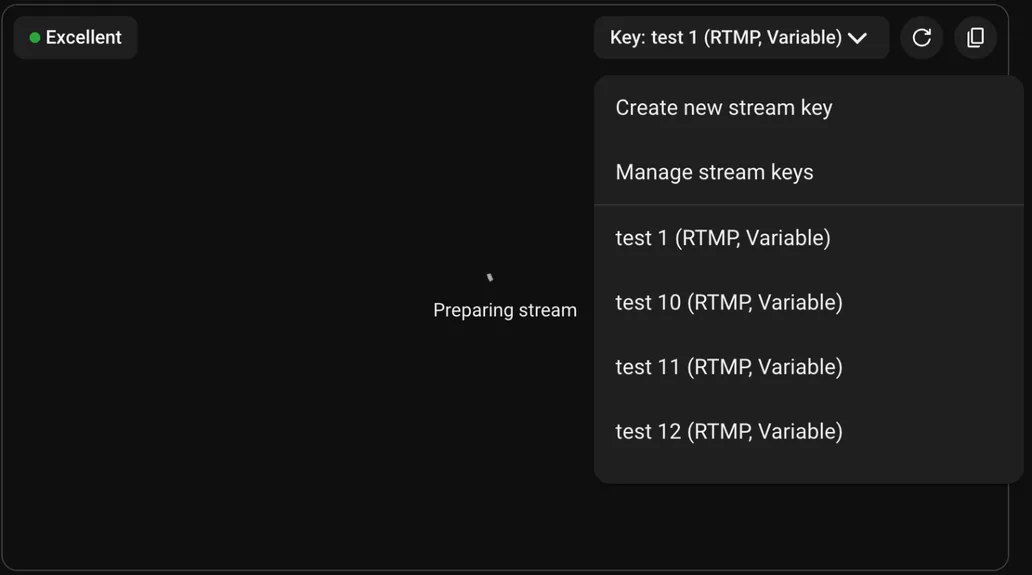
YouTube Studio → Create → Go live → Stream. The key is chosen in the Key menu above the preview; the two buttons beside it reset the selected key and copy it. The key itself never appears on screen. - Step 4
Copy the key and the stream URL into your encoder
Click Copy beside the Key menu, then copy the Stream URL from Stream settings under the preview.
- In the encoder, paste the URL into the server field (it may say RTMP server) and the key into Stream key. If the encoder offers YouTube as a service, choose that instead and only the key is needed (YouTube Help).
- The URL is the same for every channel:
rtmp://a.rtmp.youtube.com/live2, with a backup atrtmp://b.rtmp.youtube.com/live2?backup=1. Click the lock icon in the field for the encrypted RTMPS address (Encrypt your stream using RTMPS).
Start the encoder. YouTube then creates a watch page, you are live, and subscribers are notified; to end the stream, stop the encoder (YouTube Help).
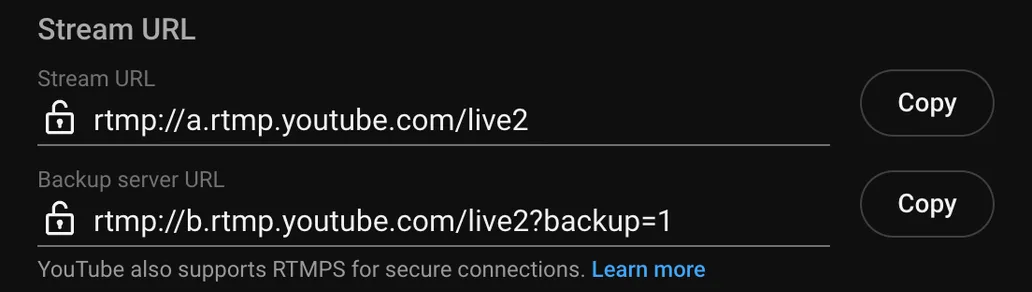
The other half of the pair: the server address, the same for every channel. The lock icon switches it to RTMPS.
The key YouTube made, or one you create
Live Control Room makes a key with the channel's first stream and loads it again next time. A custom key is one you create and name yourself, and it is YouTube's own answer to keeping one key: "To reuse the same stream key, create a custom stream key" (stream settings).
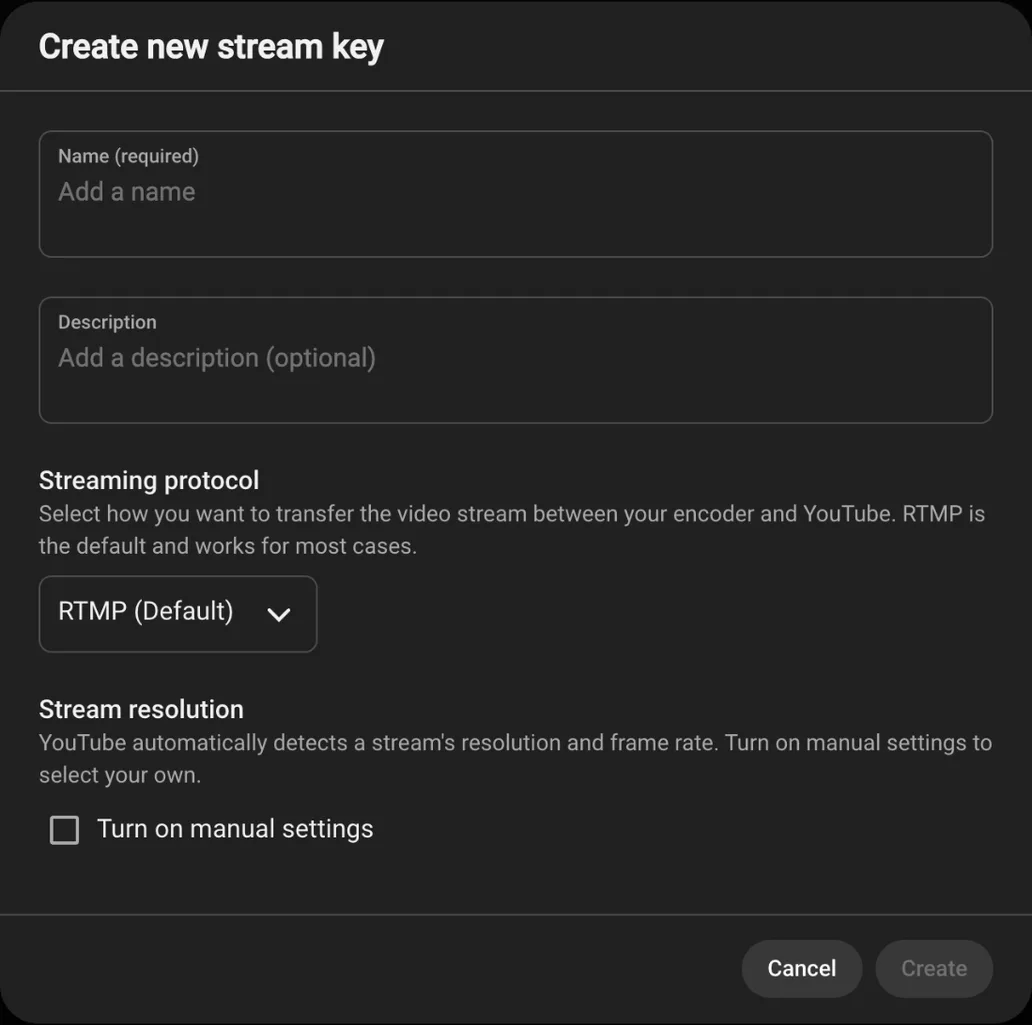
- Create one: open the Key menu → Create new stream key. Give it a name (required) and, if you like, a description, choose the protocol, and click Create. It then appears in the key list.
- Protocol: RTMP (Default), which Studio says works for most cases, or HLS (Advanced). HLS is sent over HTTPS, so its address starts with
https, notrtmp, and it has its own rules, such as segments of 1 to 4 seconds (Set up an HLS stream). - Resolution: leave Turn on manual settings unticked and YouTube detects the resolution and frame rate, which the key list shows as Variable. Tick it only if you want to fix them yourself (encoder settings).
- Reuse settings copies the key. A new stream made from an old one with Reuse settings copies its metadata, settings and stream key (stream settings). That is how two broadcasts end up waiting on one key; the duplicate stream key guide shows how to clear it.
- Keys made by other tools can be one-time. A tool that creates broadcasts through the API can make a stream that is not reusable: it "can only be bound to one broadcast" and "might be deleted by an automated process after the broadcast ends" (Live Streaming API).
For an encoder that should keep working week after week, create a custom key once and leave it in place.
How to reset a YouTube stream key
Reset a key when it has been seen by someone it should not have been - shown on a stream, in a screenshot, in a support chat. YouTube's own example is a key that "was compromised" (stream settings).
- Who can: a channel owner or manager. Editors and viewers cannot reset a key (stream settings).
- Where: Studio → Create → Go live → Stream. YouTube's help page points to the Stream key section; in the Live Control Room of November 2026 that is the Key menu above the preview, with the Reset button to its right.
- Then: copy the newly generated key and update your encoder with it (stream settings).
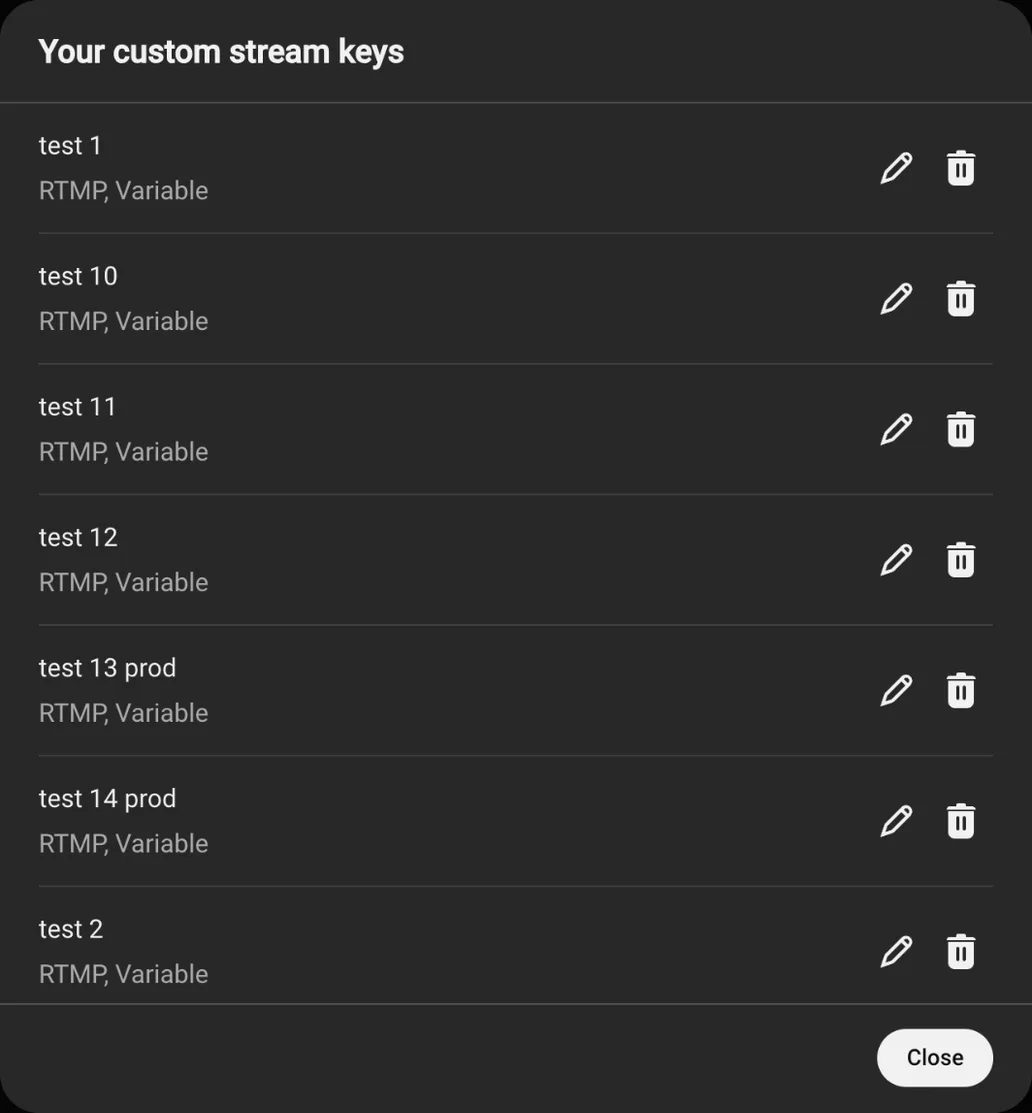
- Deleting is different. Manage stream keys lists every custom key with a pencil to edit it and a bin to delete it. Delete a key you no longer use; reset one you still use.
A key is a credential, so do not paste it into chats, issue trackers or tutorials. A screenshot of Live Control Room is safe: Studio shows keys by name, never by value.
YouTube's limits on stream keys
Most of the time a key just works. These are the limits that stop a stream from starting:
- 10 active streams per channel and 3 per stream key, both applied at once; reach either and no further stream starts (Get started with live streaming).
- A daily limit on new live streams. YouTube limits how many live streams a channel can create in 24 hours and shows Daily live stream limit achieved when it is reached (error messages).
- A second key for vertical. Live Control Room can go live horizontal and vertical at once; from an encoder, the vertical feed needs a second stream key chosen in the vertical preview (Get started with live streaming).
- Only streams under 12 hours are archived automatically (YouTube Help). A 24/7 stream stays live, but do not count on a full replay of it.
Stream key errors and what they mean
The messages people search for, and what to check for each:
Stream key is currently assigned. Select a new key or change it in <stream>.Live Control Room shows this in a yellow bar when the key you selected already belongs to another stream - the one named at the end, which can be live or scheduled.
- Pick a different key in the Key menu, or create a new one there.
- Or open the named stream from the Manage tab and give it another key.
- If the other stream was made with Reuse settings, it copied the key; the duplicate stream key guide walks through clearing it.
The preview never appears ("No data")The encoder is not reaching YouTube with this key and address.
- Copy the key again with the Copy button rather than by selecting the text, so no space or line break comes with it.
- Check the server field holds the stream URL from the same page; an RTMPS address with SSL errors can take the port written out:
rtmps://a.rtmps.youtube.com:443/live2(RTMPS help). - If the key was reset, the encoder still holds the old one. The YouTube Live no data guide covers the rest.
My key stopped workingA key that worked yesterday and does not today has usually been replaced.
- Someone with owner or manager access may have pressed Reset; copy the current key into the encoder.
- A key made by a third-party tool through the API may have been a one-time key, deleted after its broadcast (Live Streaming API). Create a custom key in Studio instead.
- Check the channel can still stream at all: a live streaming restriction blocks every key (Get started with live streaming).
Daily live stream limit achievedThe channel has created as many live streams as YouTube allows in 24 hours (error messages).
- Wait for the 24-hour window to pass.
- Reuse one stream with a custom key instead of creating a new stream for every session.
One key, a stream that runs without your computer
The stream key is all a cloud encoder needs from YouTube. In TheLoops you paste it into the dashboard once, upload the videos, and the stream runs from our servers around the clock, with your computer switched off.
Make it a custom key - the kind YouTube says to create when one key should be reused - and keep it for that one stream: TheLoops will not start a second stream on a key that is already on air.

Keep YouTube live 24/7 with just the key
Paste the stream key into TheLoops, upload your videos, and the stream runs from our servers around the clock - no computer of yours left on.
- Any RTMP or RTMPS ingest, not a fixed list
- Automatic restart if the platform drops the connection
- Up to 10 destinations from one broadcast
YouTube stream key questions
In YouTube Studio: Create → Go live, the Stream tab, then the Key menu above the preview. The copy button right of that menu copies the key.
Not by itself. When you open Live Control Room again, your previous settings load including the stream key (YouTube Help). It changes when someone resets it, and a key made through the API by another tool may be one-time.
Create a custom key: Key menu → Create new stream key, name it, Create. YouTube's help says that is how to reuse the same stream key (stream settings).
No. YouTube compares a stream key to a password. If it has been seen, reset it: owners and managers can, editors and viewers cannot (stream settings).
YouTube allows up to 3 active streams per stream key and 10 per channel (Get started with live streaming). In Live Control Room, though, a key already assigned to another stream gives Stream key is currently assigned, and you pick another.
The stream URL is the server address and is the same for every channel. The key is yours alone. The YouTube RTMP URL guide lists every address.
Read next
All four ingest addresses, RTMP and RTMPS, primary and backup.
Two broadcasts on one key: find the copy and remove it.
What it means when the preview never appears.
Three free ways to loop a video live, and where each one breaks.